
Overview
The Approval System gives admins full control over what content reaches your screens. When enabled for a user, any post they create is held in a Pending state and kept off-screen until an admin reviews it and either approves or denies it.
This is useful when you have multiple content contributors — such as department staff or external collaborators — and want to ensure quality, brand consistency, or compliance before anything goes live.
Admins and Company Admins always publish directly — the approval requirement only applies to Standard Users who have the setting enabled.

Who Can Do What
| Role | Publish directly? | Review & approve others? | Approval required? |
|---|---|---|---|
| Company Admin | ✅ Always | ✅ Yes | Never |
| Standard User — approval on | ❌ No | ❌ No | Always |
| Standard User — approval off | ✅ Yes | ❌ No | Never |
1. Enable Approval for a User
Approval is configured per user. You can turn it on when creating a new user or at any time by editing an existing one.
- Open the Settings menu (bottom-left of the sidebar) and select Manage Users.
- Click Create User to add a new user, or Edit on an existing one.
- Set the Role to Standard User (Restricted). The approval option only applies to this role.
- In the Require admin approval box, make sure the checkbox is checked: “Require admin approval before this user’s posts go live.”
- Click Save User Account.
The checkbox is checked by default for all new Standard Users, so approval is on unless you deliberately uncheck it.
Disabling approval for a trusted user
If a user has proven reliable and you want them to publish without review, simply edit their account and uncheck the approval checkbox. Their future posts will go live immediately. Previously pending posts are not affected.
2. How a User Submits Content
From the user’s perspective, the experience is nearly identical to normal posting. They fill in the content form and click Save Post as usual. The system automatically detects that their account requires approval and holds the post.
- The user selects a template from the sidebar and fills in the content fields.
- They click Save Post.
- The post is saved with a Pending status and is not yet visible on any screen.
- The post appears in the user’s own feed list marked as pending, so they know it is awaiting review.
A pending post does not appear on screens until an admin approves it — even if the user has assigned it to one or more screen locations.
3. Viewing the Approval Queue
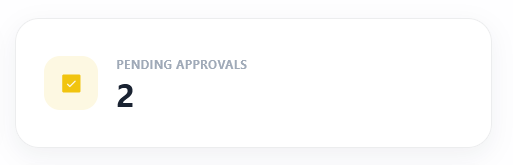
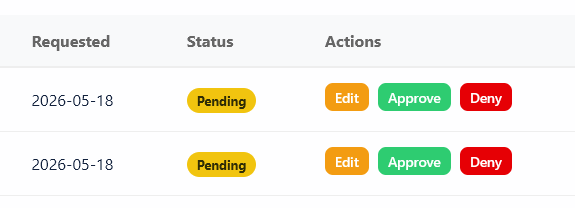
When a post is waiting for review, a counter badge appears next to Pending Approvals in the Settings menu at the bottom of the sidebar, so you always know at a glance when something needs attention.
- Click the Settings button (bottom-left of the sidebar) to open the menu.
- Click Approval Queue. If there are pending items, the button shows a count, e.g. Pending Approvals (3).
- The queue lists every post waiting for review, showing the slide title, template type, the name and email of the user who submitted it, and when it was submitted.

4. Approve or Deny a Post
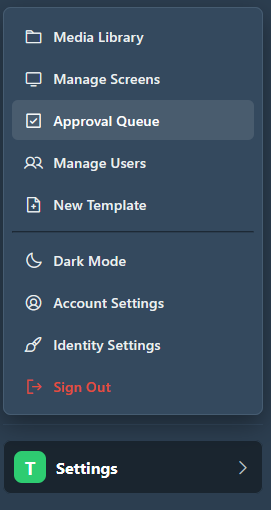
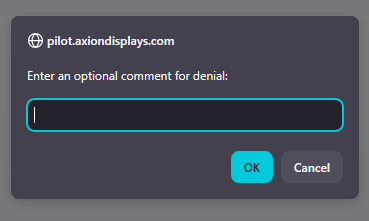
From the Approval Queue, each row has two action buttons. You can optionally add a comment to either action — useful for letting the user know why something was denied or to leave an internal note on approval.
Approving a post
- Find the post in the queue and click the green Approve button.
- A prompt will appear asking for an optional comment. You can leave it blank or type a note, then confirm.
- The post status changes to Approved and it immediately becomes active on the assigned screens.
- The post is removed from the queue automatically.
Denying a post
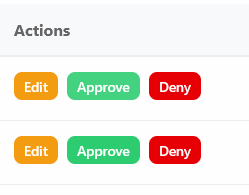
- Find the post in the queue and click the red Deny button.
- Enter an optional comment explaining the reason (recommended, so the user knows what to fix).
- The post status changes to Denied and remains off-screen.
- The user can see the denial and any comment you left when they view their post list.
Always add a comment when denying — it helps the user understand what needs to change so they can revise and resubmit.
Content Statuses Explained
| Status | What it means | Visible on screen? |
|---|---|---|
| Pending | Post has been submitted and is waiting for admin review. | ❌ No |
| Approved | Post has been reviewed and approved. It will play on assigned screens if it is also set to active. | ✅ Yes (if active) |
| Denied | Post was reviewed and rejected. The user can read the admin’s comment and revise their content. | ❌ No |
An Approved post still needs to be set to Active to play on screens. Approval and the active toggle are separate controls — approval is about editorial sign-off, the active toggle is about scheduling.
Tips & Best Practices
Check the queue daily
Users expect their content to appear on screens quickly. Make it a habit to check the Approval Queue at the start of each day. The counter badge in the sidebar makes it easy to see at a glance when action is needed.
Use comments on denial
A brief comment when denying a post — such as “Please use the brand color palette” or “Image resolution is too low” — saves a back-and-forth and helps your users learn your standards over time.
Trusted users can bypass approval
If a Standard User consistently submits high-quality content, you can uncheck their approval requirement in Manage Users → Edit. They will then publish directly without needing review.
Admins are never held for approval
Company Admins always publish instantly. If you need an admin-level user to also go through review, the current system does not support that — all admin posts go live immediately by design.