
What AI can do
Pilot CMS includes two AI-powered tools that work directly inside the post editor. Both run on Google’s Gemini platform and are activated by small ✦ AI buttons that appear next to supported fields.
✏️Text Optimization
Rewrites your text so it reads better on a screen — shorter, clearer, and in the tone you choose. Respects the field’s character limit automatically.
🖼️Image Generation
Generates 3 unique images from a text description using Google Imagen 4. Pick the one you like and it’s placed directly in the image field. Subject to a monthly limit.
✦AI features must be enabled for your account by an admin. If you don’t see the AI buttons, ask your administrator to enable them.
1. Where to find the buttons
AI buttons appear inside the post editor — the panel that opens when you click Edit or New Post on a template. Look for the ✦ AI button next to any text or image field.
- Text fields — a small ✦ AI button appears to the right of the field label.
- Image fields — an ✦ AI button appears next to the upload button.
If a button is not visible, either the feature is not enabled for your account, or the field type does not support AI (for example, date pickers or dropdowns).
2. Optimize Text
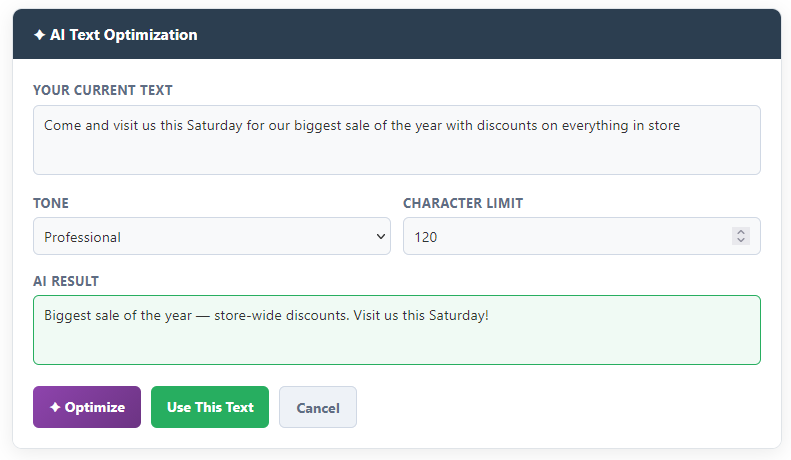
This tool takes text you’ve already written and rewrites it to be more effective on a digital display punchier, cleaner, and within the field’s character limit.
- In the post editor, type your text into any text field as you normally would.
- Click the ✦ AI button next to the field. A panel opens with your current text pre-filled.
- Choose a tone from the dropdown (see below).
- Check the character limit — it’s auto-filled from the field’s maximum. Adjust if needed.
- Click ✦ Optimize. The AI result appears in the lower box within a few seconds.
- Review the result. If you like it, click Use This Text to apply it to the field. If not, click Optimize again to get a different version.
Choosing a tone
The tone shapes the writing style. Pick the one that fits your audience:
Professional, Casual, Urgent, Friendly, Formal, Bold
| Tone | Best used for | Example |
|---|---|---|
| Professional | Corporate, B2B, office environments | “Year-end financial review — Thursday, 3 PM, Board Room” |
| Casual | Retail, hospitality, everyday messages | “Hey! Grab a coffee on us — loyalty card holders only 🎉” |
| Urgent | Flash sales, alerts, time-sensitive notices | “Today only — 50% off. Ends at midnight.” |
| Friendly | Welcome screens, healthcare, schools | “Welcome! Feel free to ask at the desk — we’re happy to help.” |
| Formal | Government, legal, institutional settings | “Visitors are reminded to report to reception upon arrival.” |
| Bold | Events, promotions, sports venues | “SOLD OUT — but we’re back Friday. Don’t miss it.” |
💡You can click Optimize more than once to get different variations. Each click generates a new result — your previous one is replaced, so copy it if you want to compare.
3. Generate an Image
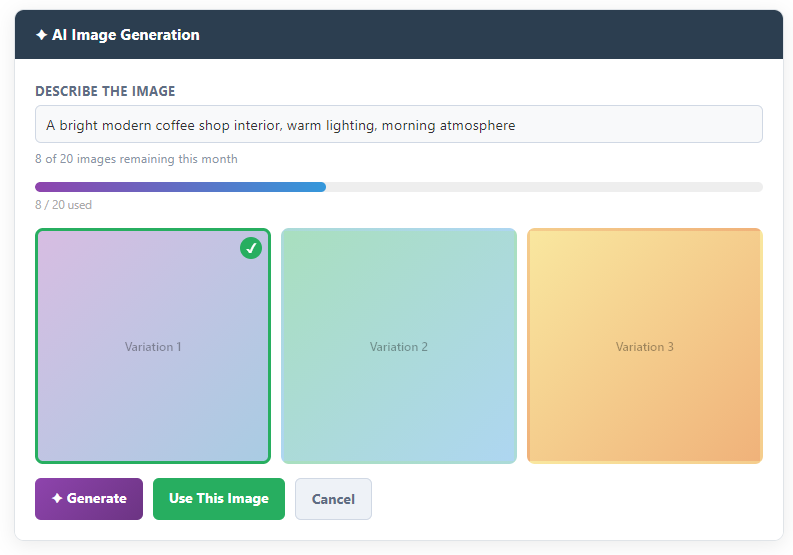
Describe the image you want in plain language and the AI generates three unique options using Google Imagen 4. You pick one, and it’s placed directly into the image field — ready to publish.
- In the post editor, click the ✦ AI button next to an image field. The image generator panel opens.
- Type a description of the image you want in the prompt box (see tips below).
- Click ✦ Generate. Three image variations are generated — this usually takes 10–20 seconds.
- Click on the image you want. A green tick confirms your selection.
- Click Use This Image to place it in the field. The two unused images are automatically deleted.
Writing good prompts
The more specific your description, the better the result. Include:
- Subject — what the main subject is (“a plate of sushi”, “a modern open office”)
- Style — photorealistic, illustration, flat design, watercolour, etc.
- Lighting & mood — bright and airy, warm evening light, dramatic shadows
- Composition — close-up, wide shot, top-down view, centred
| Vague prompt ❌ | Better prompt ✓ |
|---|---|
| “a car” | “A sleek silver SUV on an open mountain road, golden hour lighting, photorealistic” |
| “food” | “A fresh açaí bowl with colourful toppings, overhead shot, bright natural light, clean white background” |
| “office” | “A modern open-plan office with plants and standing desks, warm afternoon light, minimal style” |
| “sale banner background” | “Abstract gradient background in deep blue and purple, subtle geometric shapes, suitable for a digital retail banner” |
Monthly image limit
Each user has a monthly generation allowance set by the admin. The remaining count is shown at the top of the image generator panel. The limit resets on the first day of each month.
⚠️Each click of Generate uses up to 3 images from your monthly allowance — one for each variation shown. If you’re near your limit, only the remaining count will be generated. Choose carefully before clicking Generate again.
💡When you click Use This Image, the two images you didn’t pick are automatically deleted from the server — they don’t count against your storage quota.
4. Admin setup
AI features have two levels of control: a global switch set by the super admin, and per-account settings managed by the company admin.
Global settings (Super Admin)
The super admin must enable AI and enter the Google Gemini API key in the system settings before anything works. Without this, AI buttons are hidden for all users.
Per-account settings (Company Admin)
Once the global key is set, you can enable or disable each AI feature independently per client account:
| Setting | What it controls |
|---|---|
| Enable AI Text Optimization | Shows or hides the ✦ AI button on text fields for all users under this account. |
| Enable AI Image Generation | Shows or hides the ✦ AI button on image fields. |
| Monthly Image Limit | Sets how many AI images each user under this account can generate per month. Default is 20. Set to 0 for unlimited. |
ℹ️The monthly image limit applies per user, not per account. If you have 5 users each with a limit of 20, the account can produce up to 100 AI images per month in total.
FAQ
The ✦ AI button is not visible on any fields. Why?
The AI has not been enabled for your account (ask your admin).
I can see the text AI button but not the image button. Why?
Text optimization and image generation are enabled separately. Your admin has enabled text but not image generation for your account. Contact your admin if you need image generation enabled.
Can I use AI-generated images commercially?
Google Imagen 4’s usage policy applies. Generally, images generated through the API may be used commercially but must not be used for deceptive or harmful purposes. Check Google’s current terms of service for the latest guidance.
Does the AI text tool change my original text?
No. The original text in your field is never modified until you click Use This Text. The AI panel is a separate preview — you can close it without applying anything.
The generated image looks nothing like what I described. What can I do?
Try generating again — you’ll get three new variations each time. If results are consistently off, refine your prompt: add more detail about style, lighting, and composition. Avoid vague single words. See the Writing good prompts section above.
My monthly limit reached 0 but I need more images. What now?
The limit resets automatically on the first of next month. If you need more sooner, ask your admin to increase your monthly limit in the account settings, or ask them to reset your count manually.
Are the AI-generated images saved to my media library?
When you click Use This Image, the selected image is saved to your company’s media folder and counts toward your storage quota. The two unused images are deleted automatically at that point. If you close the panel without selecting, all three images are discarded.