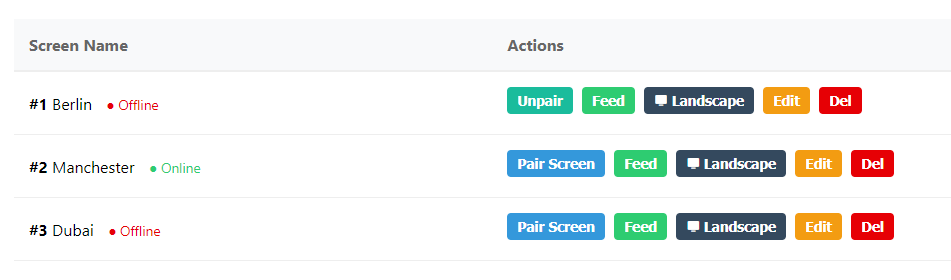
Connecting a new physical TV or Android box to Pilot is incredibly secure and requires no typing of long URLs on a TV remote.
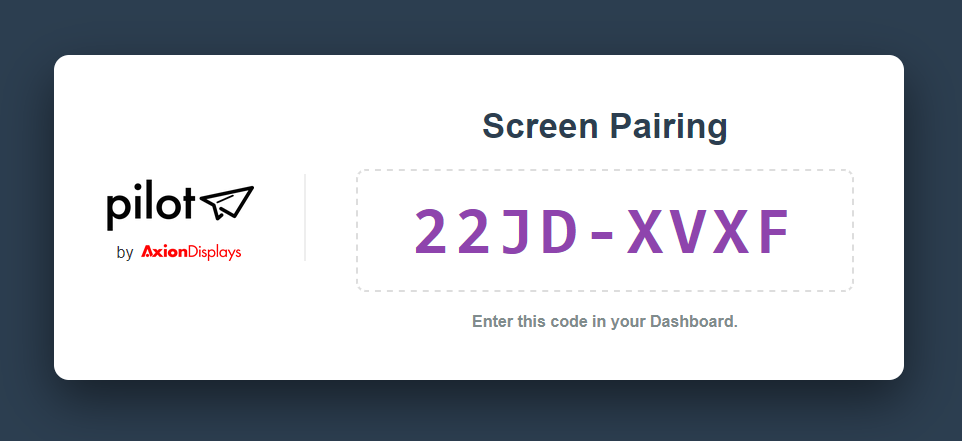
Step 1: Launch the Player on the TV
- Open the web browser on your Smart TV or Digital Signage Player.
- Navigate to your Pilot Player URL (www.axiondisplays.com/pilot/player).
- The screen will display an 8-character pairing code (e.g.,
A1B2-C3D4).
Step 2: Pair the Screen in the CMS
- In your Pilot dashboard, go to Manage Screens.
- Enter a name for the screen (e.g., “Lobby TV – North Wall”) and click Add Screen.
- In the table below, locate your new screen and click the blue Pair Screen button.
- Type in the 8-character code displayed on the TV.
- Within 5 seconds, the TV will connect to the CMS and begin downloading its assigned playlist!

Screen Operations
- Orientation: If your TV is mounted sideways, simply click the Landscape/Portrait toggle button in the Manage Screens table. The player will instantly rotate its feed 90 degrees.
- Though we advice you to set the screen orientation in the system settings before adjusting it in the orientation settings within Pilot.
- Live Feed: Click the green Feed button to see exactly which posts are currently in rotation on that specific screen.